So you followed Part 1, created your IAM roles, spun up an EC2 instance, installed the CisDsc module, and even uploaded your first MOF file to S3. You’re ready to deploy those CIS benchmarks at scale, right?
Not so fast.
If you jumped straight to Part 3 and tried to run those Systems Manager commands, you might have been greeted with… nothing. No errors, no success messages, just commands that seem to disappear into the AWS void. Or worse, errors like “InvalidInstanceId” even though you can clearly see your instance in EC2.
Here’s the thing: having SSM Agent installed and having Systems Manager actually able to manage your instance are two different things. It’s like having a phone with no signal bars - all the hardware is there, but you can’t make calls.
This post fills the gap between Parts 1 and 2. We’ll make sure Systems Manager can actually talk to your instances before we try to push 300+ security settings to them. Trust me, spending 10 minutes on this now will save you hours of troubleshooting later.
Here’s what catches most people: Systems Manager doesn’t work through public IPs like you might expect. The SSM Agent on your instance needs to make outbound HTTPS connections to several AWS endpoints:
ssm.{region}.amazonaws.com - Core Systems Manager API
ssmmessages.{region}.amazonaws.com - For Session Manager and interactive commands
ec2messages.{region}.amazonaws.com - For various EC2 operations
s3.{region}.amazonaws.com - To download your DSC configurations
If your instance is in a private subnet without internet access, you’ll need VPC endpoints or a NAT gateway. But let’s start with the basics.
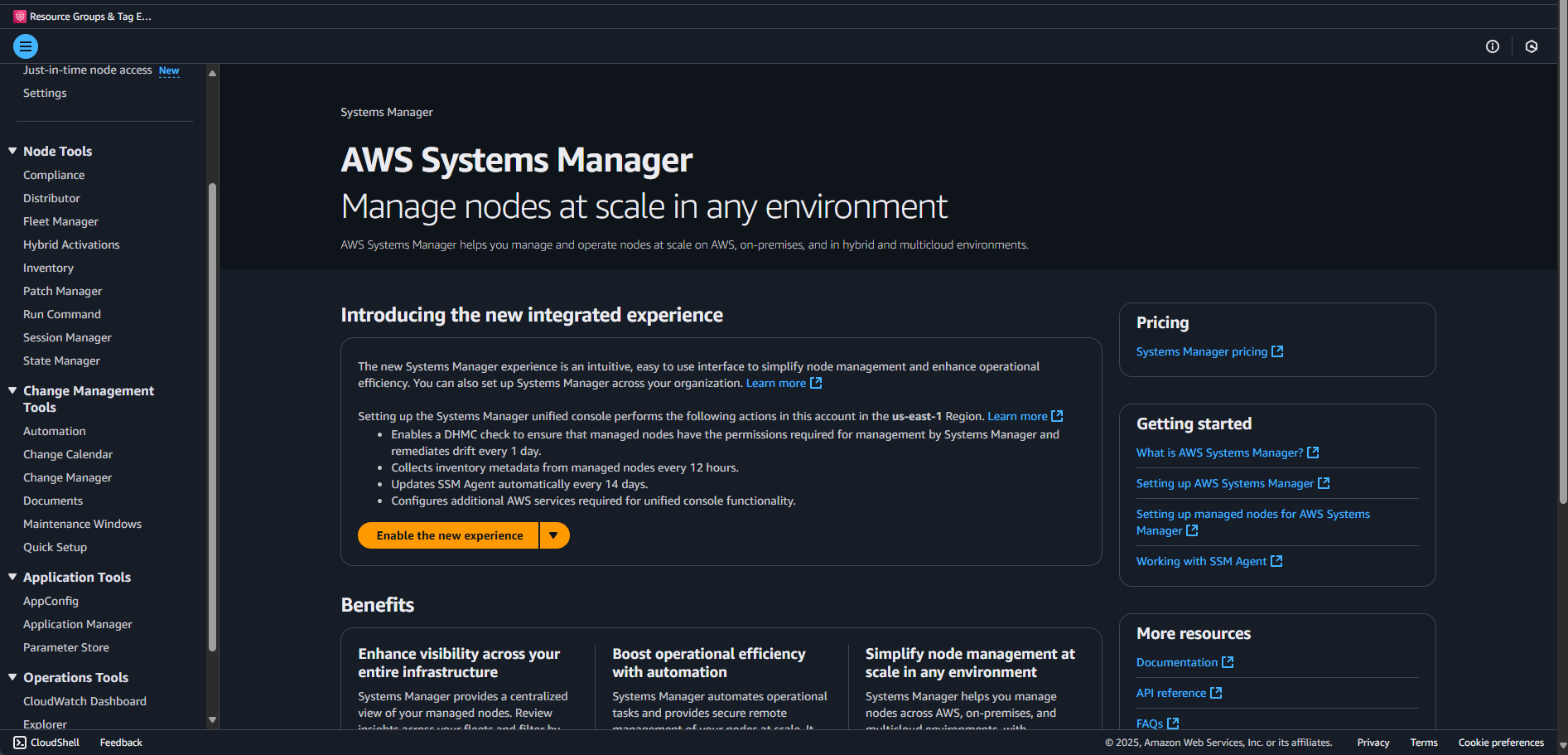
Now let’s see if Systems Manager knows your instance exists. In the new experience:
Navigate to AWS Systems Manager > Node Tools> Fleet Manager
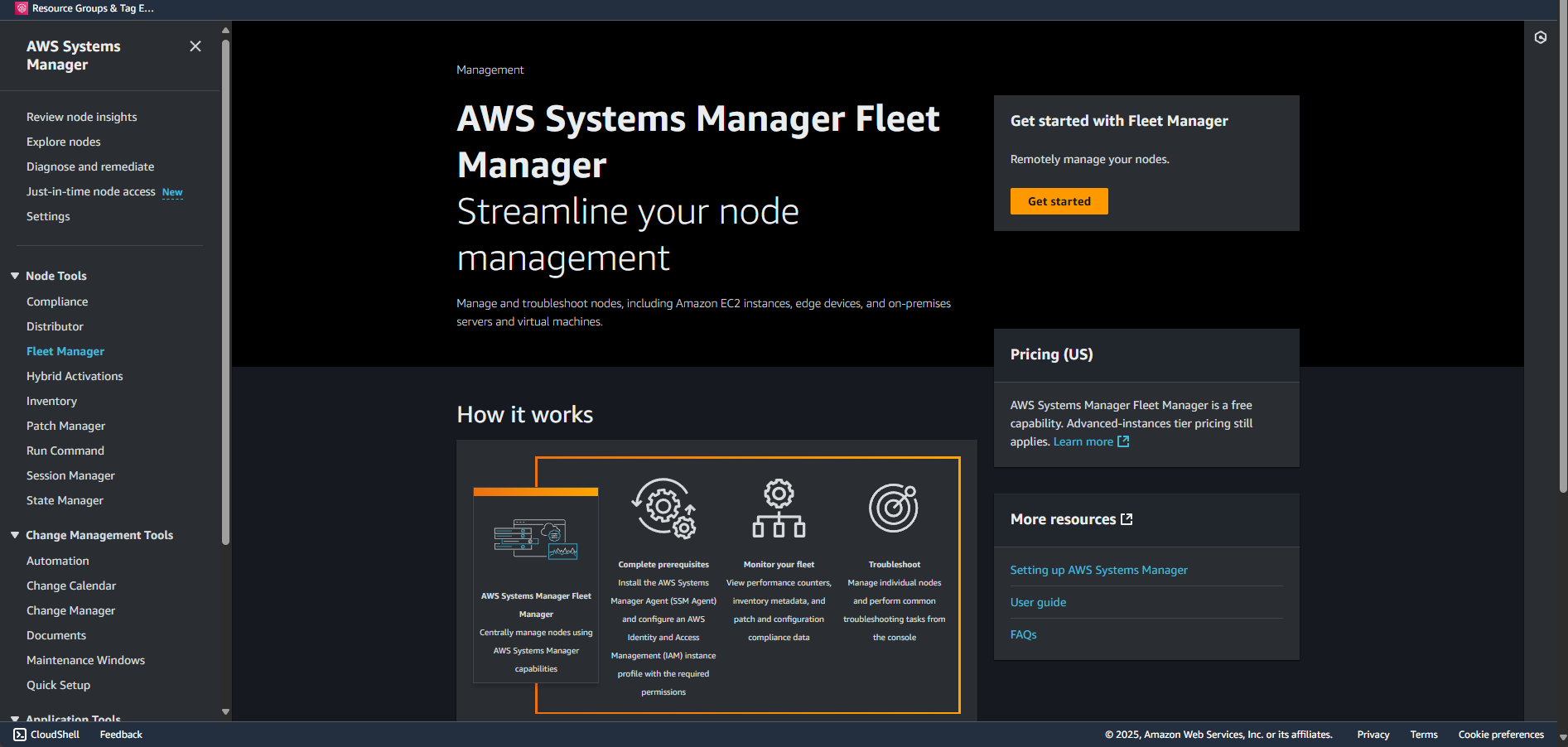
You’ll first see the Fleet Manager landing page with “Streamline your node management”
Click the “Get started” button (or if you see a list already, skip to step 4)
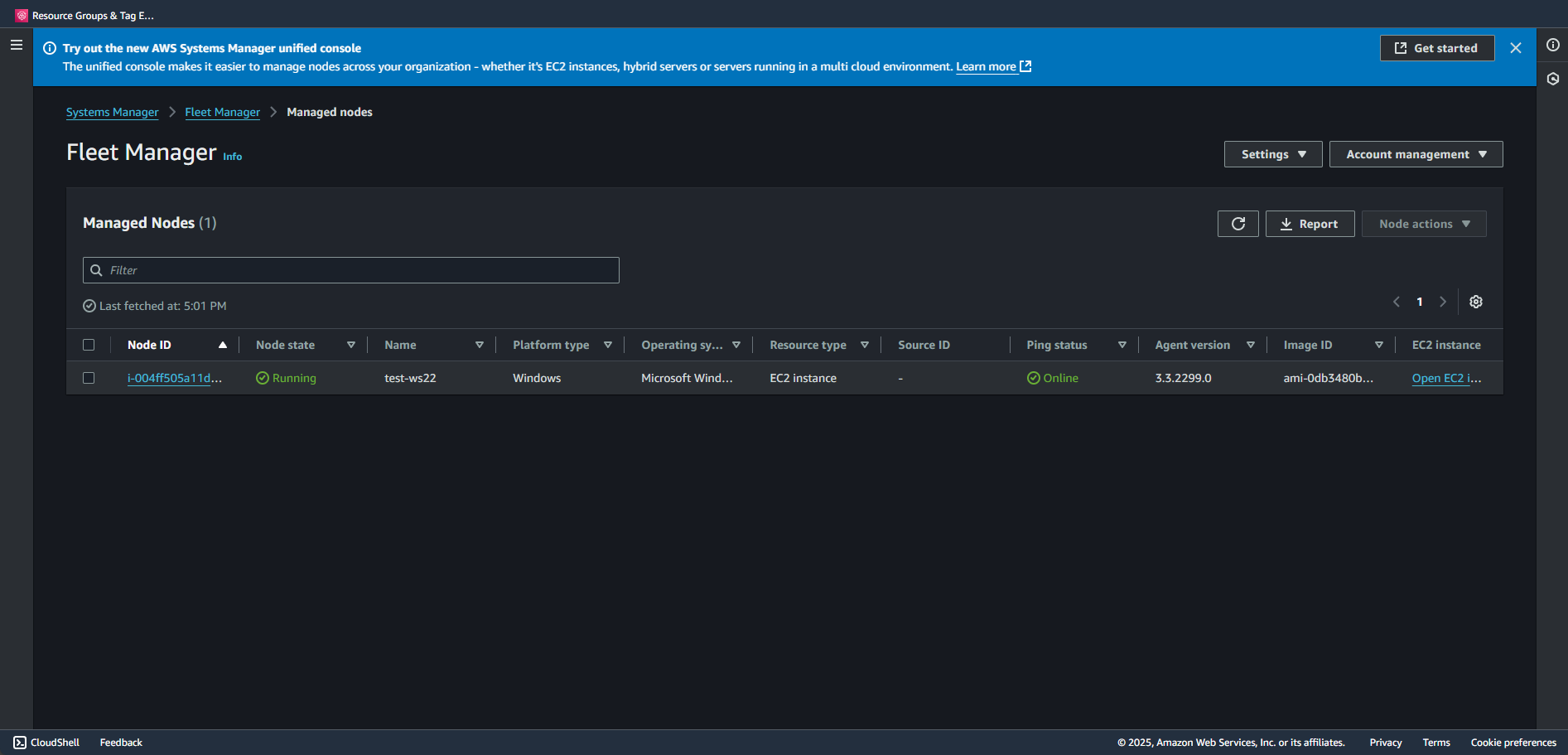
You’ll see a blue banner about the “new AWS Systems Manager unified console” - you can click the X to dismiss it or click “Learn more” if curious
Look for your instance in the list
What you want to see:
Your instance listed with its instance ID
Ping status: Online (green dot with “Online” text)
Node state: Running (green circle with “Running” text)
Platform type: Windows
Agent version: Should show a version number (like 3.3.2299.0)
What you might see instead:
An empty list with “No managed nodes found”
Your instance not listed at all
Ping status: Connection Lost (red)
Missing agent version
If your instance isn’t there or shows as offline, don’t panic. Let’s troubleshoot.
Note: The interface shows “Managed Nodes (1)” at the top - this number indicates how many instances Systems Manager can see. If it shows (0), your instance isn’t registered yet.
# Check if SSM Agent is installed and runningGet-ServiceAmazonSSMAgent# Expected output:# Status Name DisplayName# ------ ---- -----------# Running AmazonSSMAgent Amazon SSM Agent# If it's not running:Start-ServiceAmazonSSMAgent# Check the version&"C:\Program Files\Amazon\SSM\amazon-ssm-agent.exe"-version
If the service isn’t there at all, you’ll need to install it:
# Download and install latest SSM Agent$progressPreference='SilentlyContinue'Invoke-WebRequest`https://s3.amazonaws.com/ec2-downloads-windows/SSMAgent/latest/windows_amd64/AmazonSSMAgentSetup.exe`-OutFile$env:TEMP\SSMAgent_latest.exeStart-Process-FilePath"$env:TEMP\SSMAgent_latest.exe"-ArgumentList"/S"-Wait-NoNewWindow# Start the serviceStart-ServiceAmazonSSMAgent
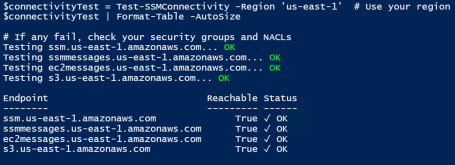
# Function to test all required endpointsfunctionTest-SSMConnectivity{param([string]$Region='us-east-1'# Change to your region)$endpoints=@("ssm.$Region.amazonaws.com","ssmmessages.$Region.amazonaws.com","ec2messages.$Region.amazonaws.com","s3.$Region.amazonaws.com")$results=@()foreach($endpointin$endpoints){Write-Host"Testing $endpoint..."-NoNewline$test=Test-NetConnection-ComputerName$endpoint-Port443-InformationLevelQuiet$results+=[PSCustomObject]@{Endpoint=$endpointReachable=$testStatus=if($test){"✓ OK"}else{"✗ FAILED"}}Write-Host$(if($test){" OK"}else{" FAILED"})-ForegroundColor$(if($test){"Green"}else{"Red"})}return$results}# Run the test$connectivityTest=Test-SSMConnectivity-Region'us-east-1'# Use your region$connectivityTest|Format-Table-AutoSize# If any fail, check your security groups and NACLs
# From the instance, check if we can access instance metadata$token=Invoke-RestMethod-Headers@{"X-aws-ec2-metadata-token-ttl-seconds"="21600"}`-MethodPUT-Urihttp://169.254.169.254/latest/api/token$role=Invoke-RestMethod-Headers@{"X-aws-ec2-metadata-token"=$token}`-MethodGET-Urihttp://169.254.169.254/latest/meta-data/iam/security-credentials/if($role){Write-Host"IAM Role attached: $role"-ForegroundColorGreen# Get temporary credentials to verify they work$creds=Invoke-RestMethod-Headers@{"X-aws-ec2-metadata-token"=$token}`-MethodGET-Uri"http://169.254.169.254/latest/meta-data/iam/security-credentials/$role"Write-Host"Credentials expire at: $($creds.Expiration)"}else{Write-Host"No IAM role attached!"-ForegroundColorRed}
# Create an activation (from your local machine)aws ssm create-activation \
--default-instance-name "MyWindowsServer"\
--description "Manual activation for troubleshooting"\
--iam-role "EC2-SSM-Role"\
--registration-limit 1
What happens when you run this: The command returns an Activation Code and Activation ID that you’ll use on your Windows server to register it with SSM:
# From the instance, get the region$region=Invoke-RestMethod-Headers@{"X-aws-ec2-metadata-token"=$token}`-MethodGET-Urihttp://169.254.169.254/latest/meta-data/placement/region# The CIDR blocks for AWS services in each region are published# For production, consider using VPC endpoints instead
# Check time syncw32tm/query/status# Force syncw32tm/resync/force# Verify NTP configurationGet-ItemProperty"HKLM:\SYSTEM\CurrentControlSet\Services\W32Time\Parameters"
<#
.SYNOPSIS Tests AWS Systems Manager connectivity and setup on Windows instances.
.DESCRIPTION This script performs a comprehensive verification of AWS Systems Manager (SSM)
prerequisites and connectivity on Windows EC2 instances, helping to diagnose
common SSM connection issues.
.NOTES File Name : Test-SystemsManagerSetup.ps1
Author : Jeffrey Stuhr
Blog Reference: This is a companion script for the blog post available at:
https://www.techbyjeff.net/part-1-5-making-sure-systems-manager-actually-works-and-logs-are-sent-to-cloudwatch/
.LINK https://www.techbyjeff.net/part-1-5-making-sure-systems-manager-actually-works-and-logs-are-sent-to-cloudwatch/
.EXAMPLE .\Test-SystemsManagerSetup.ps1
Runs the script with auto-detected instance ID and region.
.EXAMPLE .\Test-SystemsManagerSetup.ps1 -InstanceId "i-0123456789abcdef0" -Region "us-east-1"
Runs the script with specified instance ID and region.
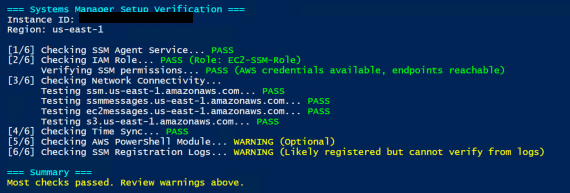
#>functionTest-SystemsManagerSetup{param([string]$InstanceId=(Invoke-RestMethod-Headers@{"X-aws-ec2-metadata-token"=`(Invoke-RestMethod-Headers@{"X-aws-ec2-metadata-token-ttl-seconds"="21600"}`-MethodPUT-Urihttp://169.254.169.254/latest/api/token)}`-MethodGET-Urihttp://169.254.169.254/latest/meta-data/instance-id),[string]$Region=(Invoke-RestMethod-Headers@{"X-aws-ec2-metadata-token"=`(Invoke-RestMethod-Headers@{"X-aws-ec2-metadata-token-ttl-seconds"="21600"}`-MethodPUT-Urihttp://169.254.169.254/latest/api/token)}`-MethodGET-Urihttp://169.254.169.254/latest/meta-data/placement/region))Write-Host"=== Systems Manager Setup Verification ==="-ForegroundColorCyanWrite-Host"Instance ID: $InstanceId"Write-Host"Region: $Region"Write-Host""$results=@{InstanceId=$InstanceIdRegion=$RegionChecks=@{}}# Check 1: SSM Agent ServiceWrite-Host"[1/6] Checking SSM Agent Service..."-NoNewline$ssmService=Get-ServiceAmazonSSMAgent-ErrorActionSilentlyContinueif($ssmService-and$ssmService.Status-eq'Running'){Write-Host" PASS"-ForegroundColorGreen$results.Checks.SSMAgent="PASS"}else{Write-Host" FAIL"-ForegroundColorRed$results.Checks.SSMAgent="FAIL: Service not running"}# Check 2: IAM RoleWrite-Host"[2/6] Checking IAM Role Assigned..."-NoNewlinetry{$token=Invoke-RestMethod-Headers@{"X-aws-ec2-metadata-token-ttl-seconds"="21600"}`-MethodPUT-Urihttp://169.254.169.254/latest/api/token$role=Invoke-RestMethod-Headers@{"X-aws-ec2-metadata-token"=$token}`-MethodGET-Urihttp://169.254.169.254/latest/meta-data/iam/security-credentials/if($role){Write-Host" PASS (Role: $role)"-ForegroundColorGreen# Now check if the role has SSM permissions by testing credentialsWrite-Host" Verifying SSM permissions..."-NoNewlinetry{# Get the credentials from the instance metadata$credentials=Invoke-RestMethod-Headers@{"X-aws-ec2-metadata-token"=$token}`-MethodGET-Uri"http://169.254.169.254/latest/meta-data/iam/security-credentials/$role"# Check if credentials look valid (they should have AccessKeyId, SecretAccessKey, and Token)if($credentials.AccessKeyId-and$credentials.SecretAccessKey-and$credentials.Token){# Try a simple unsigned request to check network connectivity to AWS endpointstry{$testEndpoint="https://sts.$Region.amazonaws.com"$connectTest=Invoke-WebRequest-Uri$testEndpoint-MethodHEAD-TimeoutSec5-ErrorActionStopWrite-Host" PASS (AWS credentials available, endpoints reachable)"-ForegroundColorGreen$results.Checks.IAMRole="PASS: $role (credentials present and AWS endpoints accessible)"}catch{Write-Host" WARNING (Credentials present but endpoint test failed)"-ForegroundColorYellow$results.Checks.IAMRole="WARNING: $role (credentials present but AWS endpoint connectivity failed)"}}else{Write-Host" FAIL (Invalid credentials)"-ForegroundColorRed$results.Checks.IAMRole="FAIL: $role has invalid or incomplete credentials"}}catch{Write-Host" WARNING (Cannot retrieve credentials)"-ForegroundColorYellow$results.Checks.IAMRole="WARNING: $role attached but cannot retrieve credentials - $($_.Exception.Message)"}}else{Write-Host" FAIL"-ForegroundColorRed$results.Checks.IAMRole="FAIL: No role attached"}}catch{Write-Host" FAIL"-ForegroundColorRed$results.Checks.IAMRole="FAIL: Cannot access metadata"}# Check 3: Network ConnectivityWrite-Host"[3/6] Checking Network Connectivity..."$endpoints=@("ssm.$Region.amazonaws.com","ssmmessages.$Region.amazonaws.com","ec2messages.$Region.amazonaws.com","s3.$Region.amazonaws.com")$networkPass=$trueforeach($endpointin$endpoints){Write-Host" Testing $endpoint..."-NoNewline$test=Test-NetConnection-ComputerName$endpoint-Port443-InformationLevelQuiet-WarningActionSilentlyContinueif($test){Write-Host" PASS"-ForegroundColorGreen}else{Write-Host" FAIL"-ForegroundColorRed$networkPass=$false}}$results.Checks.Network=if($networkPass){"PASS"}else{"FAIL: Some endpoints unreachable"}# Check 4: Time SyncWrite-Host"[4/6] Checking Time Sync..."-NoNewlinetry{# Get detailed time status$w32tmStatus=w32tm/query/status/verbose2>$nullif($w32tmStatus){# Check if time service is running and synchronized - be more flexible with the state check$serviceRunning=$w32tmStatus|Select-String"State:"$lastSync=$w32tmStatus|Select-String"Last Successful Sync Time:"# Check for any indication of synchronization$syncIndicators=$w32tmStatus|Select-String"(Synchronized|NtpClient|time.windows.com|pool.ntp.org)"if($lastSync){# Extract the last sync time and check if it's recent (within last 24 hours)$syncTimeMatch=$lastSync-match"(\d{1,2}/\d{1,2}/\d{4} \d{1,2}:\d{2}:\d{2} [AP]M)"if($syncTimeMatch){try{$syncTime=[DateTime]::Parse($matches[1])$timeDiff=(Get-Date)-$syncTimeif($timeDiff.TotalHours-le24){Write-Host" PASS (Last sync: $($timeDiff.Hours)h $($timeDiff.Minutes)m ago)"-ForegroundColorGreen$results.Checks.TimeSync="PASS: Recent sync within 24 hours"}else{Write-Host" WARNING (Last sync: $([int]$timeDiff.TotalDays) days ago)"-ForegroundColorYellow$results.Checks.TimeSync="WARNING: Last sync was $([int]$timeDiff.TotalDays) days ago"}}catch{Write-Host" PASS (Sync detected but time parsing failed)"-ForegroundColorGreen$results.Checks.TimeSync="PASS: Time sync service active"}}else{Write-Host" PASS (Time service has sync history)"-ForegroundColorGreen$results.Checks.TimeSync="PASS: Time sync service active"}}elseif($syncIndicators){# No explicit sync time but shows sync-related activityWrite-Host" PASS (Time sync service active)"-ForegroundColorGreen$results.Checks.TimeSync="PASS: Time sync indicators found"}else{Write-Host" WARNING (Time service may not be synchronized)"-ForegroundColorYellow$results.Checks.TimeSync="WARNING: Time service not properly synchronized"}}else{Write-Host" WARNING (Cannot query time service)"-ForegroundColorYellow$results.Checks.TimeSync="WARNING: Cannot query time service status"}}catch{Write-Host" WARNING (Time sync check failed)"-ForegroundColorYellow$results.Checks.TimeSync="WARNING: Time sync verification failed - $($_.Exception.Message)"}# Check 5: AWS CLI/PowerShellWrite-Host"[5/6] Checking AWS PowerShell Module..."-NoNewlineif(Get-Module-ListAvailable-NameAWS.Tools.*|Where-Object{$_.Name-eq'AWS.Tools.S3'}){Write-Host" PASS"-ForegroundColorGreen$results.Checks.AWSModule="PASS"}else{Write-Host" WARNING (Optional)"-ForegroundColorYellow$results.Checks.AWSModule="WARNING: AWS.Tools not installed"}# Check 6: SSM Registration Status (log-based verification)Write-Host"[6/6] Checking SSM Registration Logs..."-NoNewlinetry{$ssmLogPath="C:\ProgramData\Amazon\SSM\Logs\amazon-ssm-agent.log"if(Test-Path$ssmLogPath){# Look for successful registration indicators in more recent logs (last 200 lines to catch older registration)$recentLogs=Get-Content$ssmLogPath-Tail200|Where-Object{$_-match"(successfully registered|ping reply|health ping succeeded|registration completed|managed instance|fingerprint matched)"}# Also look for ongoing activity indicators (these show SSM is actively working)$activityLogs=Get-Content$ssmLogPath-Tail100|Where-Object{$_-match"(received message|command execution|document execution|polling|heartbeat)"-and$_-notmatch"error|failed"}# Look for recent errors that would indicate problems$recentErrors=Get-Content$ssmLogPath-Tail100|Where-Object{$_-match"(error|failed|timeout)"-and$_-match"(registration|ssm|connection)"-and$_-notmatch"retrying|retry"}# Enhanced logic: Consider both registration events AND ongoing activityif($recentLogs.Count-gt0-and$recentErrors.Count-eq0){Write-Host" PASS (Logs show successful registration)"-ForegroundColorGreen$results.Checks.SSMRegistration="PASS: Registration verified in logs"}elseif($activityLogs.Count-gt0-and$recentErrors.Count-eq0){Write-Host" PASS (Active SSM communication detected)"-ForegroundColorGreen$results.Checks.SSMRegistration="PASS: Active SSM communication indicates successful registration"}elseif(($recentLogs.Count-gt0-or$activityLogs.Count-gt0)-and$recentErrors.Count-le2){Write-Host" WARNING (Some errors but registration appears active)"-ForegroundColorYellow$results.Checks.SSMRegistration="WARNING: Minor errors detected but registration appears active"}elseif($recentErrors.Count-gt2){Write-Host" FAIL (Multiple recent errors)"-ForegroundColorRed$results.Checks.SSMRegistration="FAIL: Multiple recent errors in agent logs"}else{# Final fallback: if no clear indicators, check if agent is running and other checks passed$agentRunning=(Get-ServiceAmazonSSMAgent-ErrorActionSilentlyContinue).Status-eq'Running'$hasRole=$results.Checks.IAMRole-like"PASS*"$hasNetwork=$results.Checks.Network-like"PASS*"if($agentRunning-and$hasRole-and$hasNetwork){Write-Host" WARNING (Likely registered but cannot verify from logs)"-ForegroundColorYellow$results.Checks.SSMRegistration="WARNING: Prerequisites met but no clear log indicators (may be registered earlier)"}else{Write-Host" WARNING (Cannot verify registration)"-ForegroundColorYellow$results.Checks.SSMRegistration="WARNING: No clear registration indicators in recent logs"}}}else{Write-Host" WARNING (Log file not found)"-ForegroundColorYellow$results.Checks.SSMRegistration="WARNING: SSM agent log file not accessible"}}catch{Write-Host" WARNING (Cannot read logs)"-ForegroundColorYellow$results.Checks.SSMRegistration="WARNING: Cannot read SSM agent logs - $($_.Exception.Message)"}# SummaryWrite-Host""Write-Host"=== Summary ==="-ForegroundColorCyan$passCount=($results.Checks.Values|Where-Object{$_-like"PASS*"}).Count$totalCount=$results.Checks.Countif($passCount-eq$totalCount){Write-Host"All checks passed! Your instance is ready for Systems Manager."-ForegroundColorGreen}elseif($passCount-ge4){Write-Host"Most checks passed. Review warnings above."-ForegroundColorYellow}else{Write-Host"Multiple checks failed. Please review and fix issues above."-ForegroundColorRed}return$results}# Run the test$testResults=Test-SystemsManagerSetup# Save results$testResults|ConvertTo-Json-Depth10|Out-File"SSM-Setup-Test-$(Get-Date-Format'yyyyMMdd-HHmmss').json"
Setting Up CloudWatch Logs (Optional but Recommended)#
Before we wrap up, let’s set up CloudWatch Logs (since I’m sure you’re wondering what it is when I mentioned above). This isn’t required for Systems Manager to work, but you’ll want it for:
Centralized logging across all instances
Troubleshooting DSC deployments
Creating alerts on errors
Following along with monitoring examples in Part 3
{"agent":{"metrics_collection_interval":60},"logs":{"logs_collected":{"windows_events":{"collect_list":[{"event_name":"Microsoft-Windows-Desired State Configuration/Operational","event_levels":["ERROR","WARNING"],"log_group_name":"/aws/systemsmanager/dsc","log_stream_name":"{instance_id}"},{"event_name":"System","event_levels":["ERROR","WARNING"],"log_group_name":"/aws/systemsmanager/system","log_stream_name":"{instance_id}"}]},"files":{"collect_list":[{"file_path":"C:\\ProgramData\\Amazon\\SSM\\Logs\\amazon-ssm-agent.log","log_group_name":"/aws/systemsmanager/ssm-agent","log_stream_name":"{instance_id}"},{"file_path":"C:\\ProgramData\\Amazon\\SSM\\Logs\\errors.log","log_group_name":"/aws/systemsmanager/ssm-errors","log_stream_name":"{instance_id}"},{"file_path":"C:\\Logs\\DSC\\*.log","log_group_name":"/aws/systemsmanager/dsc-files","log_stream_name":"{instance_id}"}]}}}}
Save this as cloudwatch-config.json and store it in Parameter Store:
# List log groups - you should see the ones we createdaws logs describe-log-groups --log-group-name-prefix "/aws/systemsmanager"# Check for recent log streamsaws logs describe-log-streams \
--log-group-name "/aws/systemsmanager/ssm-agent"\
--order-by LastEventTime \
--descending \
--limit 5
Or check in the console:
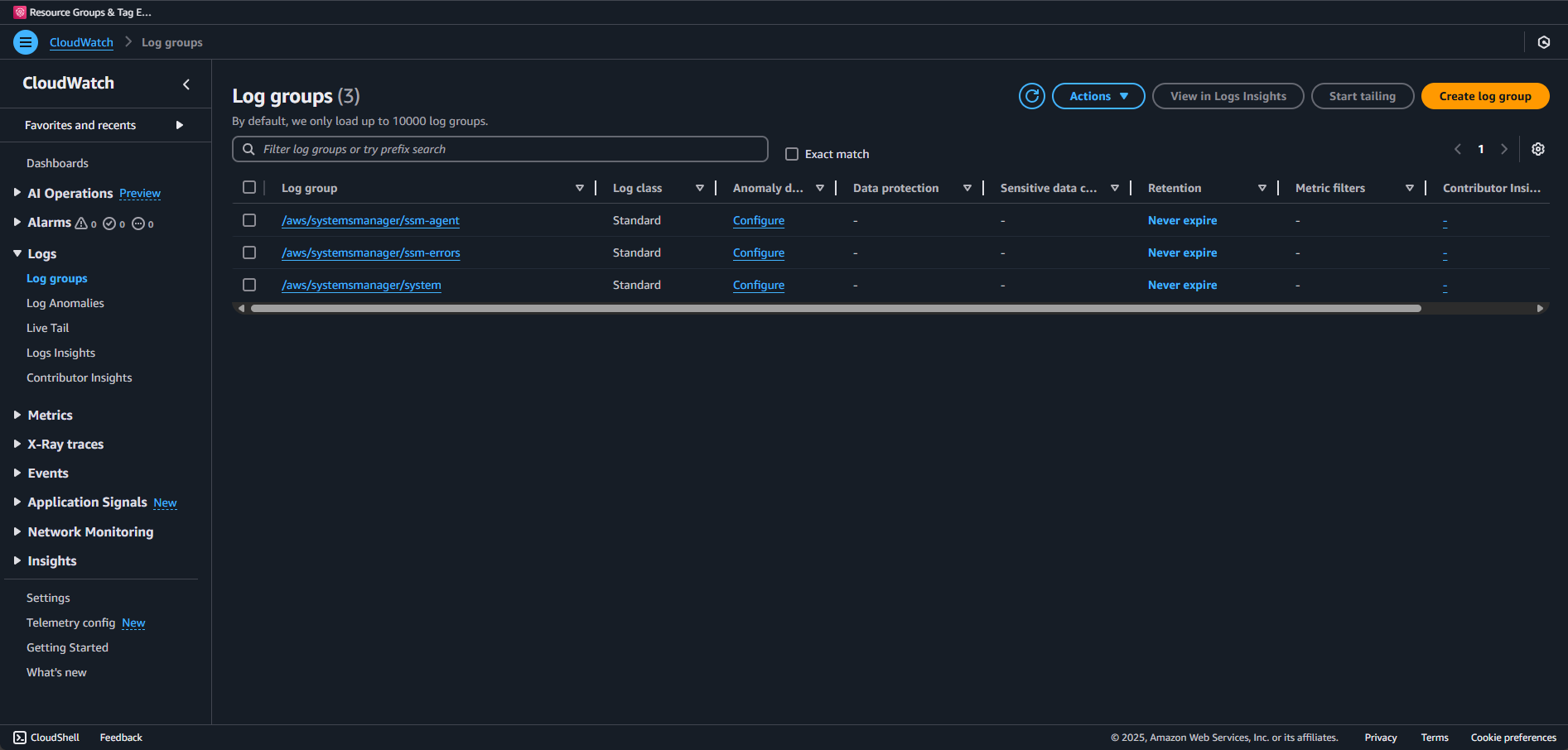
Navigate to CloudWatch > Log > Log groups
Look for log groups starting with /aws/systemsmanager/
# From the instance, check if CloudWatch agent is runningGet-ServiceAmazonCloudWatchAgent# Check agent configuration&"C:\Program Files\Amazon\AmazonCloudWatchAgent\amazon-cloudwatch-agent-ctl.ps1"`-mec2-astatus# View agent logsGet-Content"C:\ProgramData\Amazon\AmazonCloudWatchAgent\Logs\amazon-cloudwatch-agent.log"-Tail50
Common issues:
No logs appearing: Check IAM permissions and that the instance can reach CloudWatch endpoints
Agent not starting: Verify the configuration JSON is valid
Missing DSC logs: DSC events only appear after you start applying configurations
✅ Instance appears in Systems Manager Fleet Manager with “Online” status ✅ SSM Agent is running (version 3.0+ recommended) ✅ Network connectivity verified to all four endpoints ✅ IAM role attached with AmazonSSMManagedInstanceCore policy ✅ Test command executed successfully via Systems Manager ✅ S3 bucket accessible from the instance
If all checks pass, you’re ready for Part 3! Your instances can now:
Receive commands from Systems Manager
Download configurations from S3
Report compliance status back
Scale to hundreds or thousands of instances
If you’re still having issues, common next steps:
Check CloudWatch Logs for SSM Agent errors
Enable VPC Flow Logs to see if traffic is being blocked
Try with a fresh instance in a public subnet first
Post in the AWS forums with your specific error messages
Remember: Systems Manager is the foundation for everything we’re building. It’s worth getting this right before moving on to the fun stuff with DSC and CIS benchmarks.
Majority of code listed in this article can also be viewed at the companion GitHub.
Here’s a pro tip: Systems Manager can be flaky with instances that have been stopped/started frequently or have had their network settings changed. If you’ve been troubleshooting for a while and nothing works, sometimes the fastest solution is to:
Terminate the instance (after backing up any work)
Launch a fresh one with the IAM role attached from the start
Run the verification script immediately
It’s not elegant, but it works. And once you have Systems Manager working, it tends to stay working.
Ready for the real deployment action? See you in Part 3 where we will:
So you followed Part 1, created your IAM roles, spun up an EC2 instance, installed the CisDsc module, and even uploaded your first MOF file to S3. You’re ready to deploy those CIS benchmarks at scale, right?
Not so fast.
If you jumped straight to Part 3 and tried to run those Systems Manager commands, you might have been greeted with… nothing. No errors, no success messages, just commands that seem to disappear into the AWS void. Or worse, errors like “InvalidInstanceId” even though you can clearly see your instance in EC2.
Here’s the thing: having SSM Agent installed and having Systems Manager actually able to manage your instance are two different things. It’s like having a phone with no signal bars - all the hardware is there, but you can’t make calls.
This post fills the gap between Parts 1 and 3. We’ll make sure Systems Manager can actually talk to your instances before we try to push 300+ security settings to them. Trust me, spending 10 minutes on this now will save you hours of troubleshooting later.
Here’s what catches most people: Systems Manager doesn’t work through public IPs like you might expect. The SSM Agent on your instance needs to make outbound HTTPS connections to several AWS endpoints:
ssm.{region}.amazonaws.com - Core Systems Manager API
ssmmessages.{region}.amazonaws.com - For Session Manager and interactive commands
ec2messages.{region}.amazonaws.com - For various EC2 operations
s3.{region}.amazonaws.com - To download your DSC configurations
If your instance is in a private subnet without internet access, you’ll need VPC endpoints or a NAT gateway. But let’s start with the basics.
Now let’s see if Systems Manager knows your instance exists. In the new experience:
Navigate to AWS Systems Manager > Node Tools> Fleet Manager
You’ll first see the Fleet Manager landing page with “Streamline your node management”
Click the “Get started” button (or if you see a list already, skip to step 4)
You’ll see a blue banner about the “new AWS Systems Manager unified console” - you can click the X to dismiss it or click “Learn more” if curious
Look for your instance in the list
What you want to see:
Your instance listed with its instance ID
Ping status: Online (green dot with “Online” text)
Node state: Running (green circle with “Running” text)
Platform type: Windows
Agent version: Should show a version number (like 3.3.2299.0)
What you might see instead:
An empty list with “No managed nodes found”
Your instance not listed at all
Ping status: Connection Lost (red)
Missing agent version
If your instance isn’t there or shows as offline, don’t panic. Let’s troubleshoot.
Note: The interface shows “Managed Nodes (1)” at the top - this number indicates how many instances Systems Manager can see. If it shows (0), your instance isn’t registered yet.
# Check if SSM Agent is installed and runningGet-ServiceAmazonSSMAgent# Expected output:# Status Name DisplayName# ------ ---- -----------# Running AmazonSSMAgent Amazon SSM Agent# If it's not running:Start-ServiceAmazonSSMAgent# Check the version&"C:\Program Files\Amazon\SSM\amazon-ssm-agent.exe"-version
If the service isn’t there at all, you’ll need to install it:
# Download and install latest SSM Agent$progressPreference='SilentlyContinue'Invoke-WebRequest`https://s3.amazonaws.com/ec2-downloads-windows/SSMAgent/latest/windows_amd64/AmazonSSMAgentSetup.exe`-OutFile$env:TEMP\SSMAgent_latest.exeStart-Process-FilePath"$env:TEMP\SSMAgent_latest.exe"-ArgumentList"/S"-Wait-NoNewWindow# Start the serviceStart-ServiceAmazonSSMAgent
# Function to test all required endpointsfunctionTest-SSMConnectivity{param([string]$Region='us-east-1'# Change to your region)$endpoints=@("ssm.$Region.amazonaws.com","ssmmessages.$Region.amazonaws.com","ec2messages.$Region.amazonaws.com","s3.$Region.amazonaws.com")$results=@()foreach($endpointin$endpoints){Write-Host"Testing $endpoint..."-NoNewline$test=Test-NetConnection-ComputerName$endpoint-Port443-InformationLevelQuiet$results+=[PSCustomObject]@{Endpoint=$endpointReachable=$testStatus=if($test){"✓ OK"}else{"✗ FAILED"}}Write-Host$(if($test){" OK"}else{" FAILED"})-ForegroundColor$(if($test){"Green"}else{"Red"})}return$results}# Run the test$connectivityTest=Test-SSMConnectivity-Region'us-east-1'# Use your region$connectivityTest|Format-Table-AutoSize# If any fail, check your security groups and NACLs
# From the instance, check if we can access instance metadata$token=Invoke-RestMethod-Headers@{"X-aws-ec2-metadata-token-ttl-seconds"="21600"}`-MethodPUT-Urihttp://169.254.169.254/latest/api/token$role=Invoke-RestMethod-Headers@{"X-aws-ec2-metadata-token"=$token}`-MethodGET-Urihttp://169.254.169.254/latest/meta-data/iam/security-credentials/if($role){Write-Host"IAM Role attached: $role"-ForegroundColorGreen# Get temporary credentials to verify they work$creds=Invoke-RestMethod-Headers@{"X-aws-ec2-metadata-token"=$token}`-MethodGET-Uri"http://169.254.169.254/latest/meta-data/iam/security-credentials/$role"Write-Host"Credentials expire at: $($creds.Expiration)"}else{Write-Host"No IAM role attached!"-ForegroundColorRed}
# Create an activation (from your local machine)aws ssm create-activation \
--default-instance-name "MyWindowsServer"\
--description "Manual activation for troubleshooting"\
--iam-role "EC2-SSM-Role"\
--registration-limit 1
What happens when you run this: The command returns an Activation Code and Activation ID that you’ll use on your Windows server to register it with SSM:
# From the instance, get the region$region=Invoke-RestMethod-Headers@{"X-aws-ec2-metadata-token"=$token}`-MethodGET-Urihttp://169.254.169.254/latest/meta-data/placement/region# The CIDR blocks for AWS services in each region are published# For production, consider using VPC endpoints instead
# Check time syncw32tm/query/status# Force syncw32tm/resync/force# Verify NTP configurationGet-ItemProperty"HKLM:\SYSTEM\CurrentControlSet\Services\W32Time\Parameters"
<#
.SYNOPSIS Tests AWS Systems Manager connectivity and setup on Windows instances.
.DESCRIPTION This script performs a comprehensive verification of AWS Systems Manager (SSM)
prerequisites and connectivity on Windows EC2 instances, helping to diagnose
common SSM connection issues.
.NOTES File Name : Test-SystemsManagerSetup.ps1
Author : Jeffrey Stuhr
Blog Reference: This is a companion script for the blog post available at:
https://www.techbyjeff.net/part-1-5-making-sure-systems-manager-actually-works-and-logs-are-sent-to-cloudwatch/
.LINK https://www.techbyjeff.net/part-1-5-making-sure-systems-manager-actually-works-and-logs-are-sent-to-cloudwatch/
.EXAMPLE .\Test-SystemsManagerSetup.ps1
Runs the script with auto-detected instance ID and region.
.EXAMPLE .\Test-SystemsManagerSetup.ps1 -InstanceId "i-0123456789abcdef0" -Region "us-east-1"
Runs the script with specified instance ID and region.
#>functionTest-SystemsManagerSetup{param([string]$InstanceId=(Invoke-RestMethod-Headers@{"X-aws-ec2-metadata-token"=`(Invoke-RestMethod-Headers@{"X-aws-ec2-metadata-token-ttl-seconds"="21600"}`-MethodPUT-Urihttp://169.254.169.254/latest/api/token)}`-MethodGET-Urihttp://169.254.169.254/latest/meta-data/instance-id),[string]$Region=(Invoke-RestMethod-Headers@{"X-aws-ec2-metadata-token"=`(Invoke-RestMethod-Headers@{"X-aws-ec2-metadata-token-ttl-seconds"="21600"}`-MethodPUT-Urihttp://169.254.169.254/latest/api/token)}`-MethodGET-Urihttp://169.254.169.254/latest/meta-data/placement/region))Write-Host"=== Systems Manager Setup Verification ==="-ForegroundColorCyanWrite-Host"Instance ID: $InstanceId"Write-Host"Region: $Region"Write-Host""$results=@{InstanceId=$InstanceIdRegion=$RegionChecks=@{}}# Check 1: SSM Agent ServiceWrite-Host"[1/6] Checking SSM Agent Service..."-NoNewline$ssmService=Get-ServiceAmazonSSMAgent-ErrorActionSilentlyContinueif($ssmService-and$ssmService.Status-eq'Running'){Write-Host" PASS"-ForegroundColorGreen$results.Checks.SSMAgent="PASS"}else{Write-Host" FAIL"-ForegroundColorRed$results.Checks.SSMAgent="FAIL: Service not running"}# Check 2: IAM RoleWrite-Host"[2/6] Checking IAM Role Assigned..."-NoNewlinetry{$token=Invoke-RestMethod-Headers@{"X-aws-ec2-metadata-token-ttl-seconds"="21600"}`-MethodPUT-Urihttp://169.254.169.254/latest/api/token$role=Invoke-RestMethod-Headers@{"X-aws-ec2-metadata-token"=$token}`-MethodGET-Urihttp://169.254.169.254/latest/meta-data/iam/security-credentials/if($role){Write-Host" PASS (Role: $role)"-ForegroundColorGreen# Now check if the role has SSM permissions by testing credentialsWrite-Host" Verifying SSM permissions..."-NoNewlinetry{# Get the credentials from the instance metadata$credentials=Invoke-RestMethod-Headers@{"X-aws-ec2-metadata-token"=$token}`-MethodGET-Uri"http://169.254.169.254/latest/meta-data/iam/security-credentials/$role"# Check if credentials look valid (they should have AccessKeyId, SecretAccessKey, and Token)if($credentials.AccessKeyId-and$credentials.SecretAccessKey-and$credentials.Token){# Try a simple unsigned request to check network connectivity to AWS endpointstry{$testEndpoint="https://sts.$Region.amazonaws.com"$connectTest=Invoke-WebRequest-Uri$testEndpoint-MethodHEAD-TimeoutSec5-ErrorActionStopWrite-Host" PASS (AWS credentials available, endpoints reachable)"-ForegroundColorGreen$results.Checks.IAMRole="PASS: $role (credentials present and AWS endpoints accessible)"}catch{Write-Host" WARNING (Credentials present but endpoint test failed)"-ForegroundColorYellow$results.Checks.IAMRole="WARNING: $role (credentials present but AWS endpoint connectivity failed)"}}else{Write-Host" FAIL (Invalid credentials)"-ForegroundColorRed$results.Checks.IAMRole="FAIL: $role has invalid or incomplete credentials"}}catch{Write-Host" WARNING (Cannot retrieve credentials)"-ForegroundColorYellow$results.Checks.IAMRole="WARNING: $role attached but cannot retrieve credentials - $($_.Exception.Message)"}}else{Write-Host" FAIL"-ForegroundColorRed$results.Checks.IAMRole="FAIL: No role attached"}}catch{Write-Host" FAIL"-ForegroundColorRed$results.Checks.IAMRole="FAIL: Cannot access metadata"}# Check 3: Network ConnectivityWrite-Host"[3/6] Checking Network Connectivity..."$endpoints=@("ssm.$Region.amazonaws.com","ssmmessages.$Region.amazonaws.com","ec2messages.$Region.amazonaws.com","s3.$Region.amazonaws.com")$networkPass=$trueforeach($endpointin$endpoints){Write-Host" Testing $endpoint..."-NoNewline$test=Test-NetConnection-ComputerName$endpoint-Port443-InformationLevelQuiet-WarningActionSilentlyContinueif($test){Write-Host" PASS"-ForegroundColorGreen}else{Write-Host" FAIL"-ForegroundColorRed$networkPass=$false}}$results.Checks.Network=if($networkPass){"PASS"}else{"FAIL: Some endpoints unreachable"}# Check 4: Time SyncWrite-Host"[4/6] Checking Time Sync..."-NoNewlinetry{# Get detailed time status$w32tmStatus=w32tm/query/status/verbose2>$nullif($w32tmStatus){# Check if time service is running and synchronized - be more flexible with the state check$serviceRunning=$w32tmStatus|Select-String"State:"$lastSync=$w32tmStatus|Select-String"Last Successful Sync Time:"# Check for any indication of synchronization$syncIndicators=$w32tmStatus|Select-String"(Synchronized|NtpClient|time.windows.com|pool.ntp.org)"if($lastSync){# Extract the last sync time and check if it's recent (within last 24 hours)$syncTimeMatch=$lastSync-match"(\d{1,2}/\d{1,2}/\d{4} \d{1,2}:\d{2}:\d{2} [AP]M)"if($syncTimeMatch){try{$syncTime=[DateTime]::Parse($matches[1])$timeDiff=(Get-Date)-$syncTimeif($timeDiff.TotalHours-le24){Write-Host" PASS (Last sync: $($timeDiff.Hours)h $($timeDiff.Minutes)m ago)"-ForegroundColorGreen$results.Checks.TimeSync="PASS: Recent sync within 24 hours"}else{Write-Host" WARNING (Last sync: $([int]$timeDiff.TotalDays) days ago)"-ForegroundColorYellow$results.Checks.TimeSync="WARNING: Last sync was $([int]$timeDiff.TotalDays) days ago"}}catch{Write-Host" PASS (Sync detected but time parsing failed)"-ForegroundColorGreen$results.Checks.TimeSync="PASS: Time sync service active"}}else{Write-Host" PASS (Time service has sync history)"-ForegroundColorGreen$results.Checks.TimeSync="PASS: Time sync service active"}}elseif($syncIndicators){# No explicit sync time but shows sync-related activityWrite-Host" PASS (Time sync service active)"-ForegroundColorGreen$results.Checks.TimeSync="PASS: Time sync indicators found"}else{Write-Host" WARNING (Time service may not be synchronized)"-ForegroundColorYellow$results.Checks.TimeSync="WARNING: Time service not properly synchronized"}}else{Write-Host" WARNING (Cannot query time service)"-ForegroundColorYellow$results.Checks.TimeSync="WARNING: Cannot query time service status"}}catch{Write-Host" WARNING (Time sync check failed)"-ForegroundColorYellow$results.Checks.TimeSync="WARNING: Time sync verification failed - $($_.Exception.Message)"}# Check 5: AWS CLI/PowerShellWrite-Host"[5/6] Checking AWS PowerShell Module..."-NoNewlineif(Get-Module-ListAvailable-NameAWS.Tools.*|Where-Object{$_.Name-eq'AWS.Tools.S3'}){Write-Host" PASS"-ForegroundColorGreen$results.Checks.AWSModule="PASS"}else{Write-Host" WARNING (Optional)"-ForegroundColorYellow$results.Checks.AWSModule="WARNING: AWS.Tools not installed"}# Check 6: SSM Registration Status (log-based verification)Write-Host"[6/6] Checking SSM Registration Logs..."-NoNewlinetry{$ssmLogPath="C:\ProgramData\Amazon\SSM\Logs\amazon-ssm-agent.log"if(Test-Path$ssmLogPath){# Look for successful registration indicators in more recent logs (last 200 lines to catch older registration)$recentLogs=Get-Content$ssmLogPath-Tail200|Where-Object{$_-match"(successfully registered|ping reply|health ping succeeded|registration completed|managed instance|fingerprint matched)"}# Also look for ongoing activity indicators (these show SSM is actively working)$activityLogs=Get-Content$ssmLogPath-Tail100|Where-Object{$_-match"(received message|command execution|document execution|polling|heartbeat)"-and$_-notmatch"error|failed"}# Look for recent errors that would indicate problems$recentErrors=Get-Content$ssmLogPath-Tail100|Where-Object{$_-match"(error|failed|timeout)"-and$_-match"(registration|ssm|connection)"-and$_-notmatch"retrying|retry"}# Enhanced logic: Consider both registration events AND ongoing activityif($recentLogs.Count-gt0-and$recentErrors.Count-eq0){Write-Host" PASS (Logs show successful registration)"-ForegroundColorGreen$results.Checks.SSMRegistration="PASS: Registration verified in logs"}elseif($activityLogs.Count-gt0-and$recentErrors.Count-eq0){Write-Host" PASS (Active SSM communication detected)"-ForegroundColorGreen$results.Checks.SSMRegistration="PASS: Active SSM communication indicates successful registration"}elseif(($recentLogs.Count-gt0-or$activityLogs.Count-gt0)-and$recentErrors.Count-le2){Write-Host" WARNING (Some errors but registration appears active)"-ForegroundColorYellow$results.Checks.SSMRegistration="WARNING: Minor errors detected but registration appears active"}elseif($recentErrors.Count-gt2){Write-Host" FAIL (Multiple recent errors)"-ForegroundColorRed$results.Checks.SSMRegistration="FAIL: Multiple recent errors in agent logs"}else{# Final fallback: if no clear indicators, check if agent is running and other checks passed$agentRunning=(Get-ServiceAmazonSSMAgent-ErrorActionSilentlyContinue).Status-eq'Running'$hasRole=$results.Checks.IAMRole-like"PASS*"$hasNetwork=$results.Checks.Network-like"PASS*"if($agentRunning-and$hasRole-and$hasNetwork){Write-Host" WARNING (Likely registered but cannot verify from logs)"-ForegroundColorYellow$results.Checks.SSMRegistration="WARNING: Prerequisites met but no clear log indicators (may be registered earlier)"}else{Write-Host" WARNING (Cannot verify registration)"-ForegroundColorYellow$results.Checks.SSMRegistration="WARNING: No clear registration indicators in recent logs"}}}else{Write-Host" WARNING (Log file not found)"-ForegroundColorYellow$results.Checks.SSMRegistration="WARNING: SSM agent log file not accessible"}}catch{Write-Host" WARNING (Cannot read logs)"-ForegroundColorYellow$results.Checks.SSMRegistration="WARNING: Cannot read SSM agent logs - $($_.Exception.Message)"}# SummaryWrite-Host""Write-Host"=== Summary ==="-ForegroundColorCyan$passCount=($results.Checks.Values|Where-Object{$_-like"PASS*"}).Count$totalCount=$results.Checks.Countif($passCount-eq$totalCount){Write-Host"All checks passed! Your instance is ready for Systems Manager."-ForegroundColorGreen}elseif($passCount-ge4){Write-Host"Most checks passed. Review warnings above."-ForegroundColorYellow}else{Write-Host"Multiple checks failed. Please review and fix issues above."-ForegroundColorRed}return$results}# Run the test$testResults=Test-SystemsManagerSetup# Save results$testResults|ConvertTo-Json-Depth10|Out-File"SSM-Setup-Test-$(Get-Date-Format'yyyyMMdd-HHmmss').json"
Setting Up CloudWatch Logs (Optional but Recommended)#
Before we wrap up, let’s set up CloudWatch Logs (since I’m sure you’re wondering what it is when I mentioned above). This isn’t required for Systems Manager to work, but you’ll want it for:
Centralized logging across all instances
Troubleshooting DSC deployments
Creating alerts on errors
Following along with monitoring examples in Part 3
{"agent":{"metrics_collection_interval":60},"logs":{"logs_collected":{"windows_events":{"collect_list":[{"event_name":"Microsoft-Windows-Desired State Configuration/Operational","event_levels":["ERROR","WARNING","INFORMATION"],"log_group_name":"/aws/systemsmanager/dsc","log_stream_name":"{instance_id}"},{"event_name":"System","event_levels":["ERROR","WARNING"],"log_group_name":"/aws/systemsmanager/system","log_stream_name":"{instance_id}"}]},"files":{"collect_list":[{"file_path":"C:\\ProgramData\\Amazon\\SSM\\Logs\\amazon-ssm-agent.log","log_group_name":"/aws/systemsmanager/ssm-agent","log_stream_name":"{instance_id}"},{"file_path":"C:\\ProgramData\\Amazon\\SSM\\Logs\\errors.log","log_group_name":"/aws/systemsmanager/ssm-errors","log_stream_name":"{instance_id}"}]}}}}
Save this as cloudwatch-config.json and store it in Parameter Store:
# List log groups - you should see the ones we createdaws logs describe-log-groups --log-group-name-prefix "/aws/systemsmanager"# Check for recent log streamsaws logs describe-log-streams \
--log-group-name "/aws/systemsmanager/ssm-agent"\
--order-by LastEventTime \
--descending \
--limit 5
Or check in the console:
Navigate to CloudWatch > Log > Log groups
Look for log groups starting with /aws/systemsmanager/
# From the instance, check if CloudWatch agent is runningGet-ServiceAmazonCloudWatchAgent# Check agent configuration&"C:\Program Files\Amazon\AmazonCloudWatchAgent\amazon-cloudwatch-agent-ctl.ps1"`-mec2-astatus# View agent logsGet-Content"C:\ProgramData\Amazon\AmazonCloudWatchAgent\Logs\amazon-cloudwatch-agent.log"-Tail50
Common issues:
No logs appearing: Check IAM permissions and that the instance can reach CloudWatch endpoints
Agent not starting: Verify the configuration JSON is valid
Missing DSC logs: DSC events only appear after you start applying configurations
✅ Instance appears in Systems Manager Fleet Manager with “Online” status ✅ SSM Agent is running (version 3.0+ recommended) ✅ Network connectivity verified to all four endpoints ✅ IAM role attached with AmazonSSMManagedInstanceCore policy ✅ Test command executed successfully via Systems Manager ✅ S3 bucket accessible from the instance
If all checks pass, you’re ready for Part 3! Your instances can now:
Receive commands from Systems Manager
Download configurations from S3
Report compliance status back
Scale to hundreds or thousands of instances
If you’re still having issues, common next steps:
Check CloudWatch Logs for SSM Agent errors
Enable VPC Flow Logs to see if traffic is being blocked
Try with a fresh instance in a public subnet first
Post in the AWS forums with your specific error messages
Remember: Systems Manager is the foundation for everything we’re building. It’s worth getting this right before moving on to the fun stuff with DSC and CIS benchmarks.
Majority of code listed in this article can also be viewed at the companion GitHub.
Here’s a pro tip: Systems Manager can be flaky with instances that have been stopped/started frequently or have had their network settings changed. If you’ve been troubleshooting for a while and nothing works, sometimes the fastest solution is to:
Terminate the instance (after backing up any work)
Launch a fresh one with the IAM role attached from the start
Run the verification script immediately
It’s not elegant, but it works. And once you have Systems Manager working, it tends to stay working.
Ready for the real deployment action? See you in Part 3!